

As a CANopen Servo Drive supplier, I understand the importance of providing clear guidance on how to connect a CANopen Servo Drive to a PC. This process is crucial for users who want to configure, monitor, and control their servo drives effectively. In this blog post, I will walk you through the steps involved in establishing a connection between a CANopen Servo Drive and a PC, along with some essential tips and considerations.
Step 1: Gather the Necessary Equipment
Before you begin the connection process, you need to ensure that you have all the required equipment. Here's a list of items you'll need:
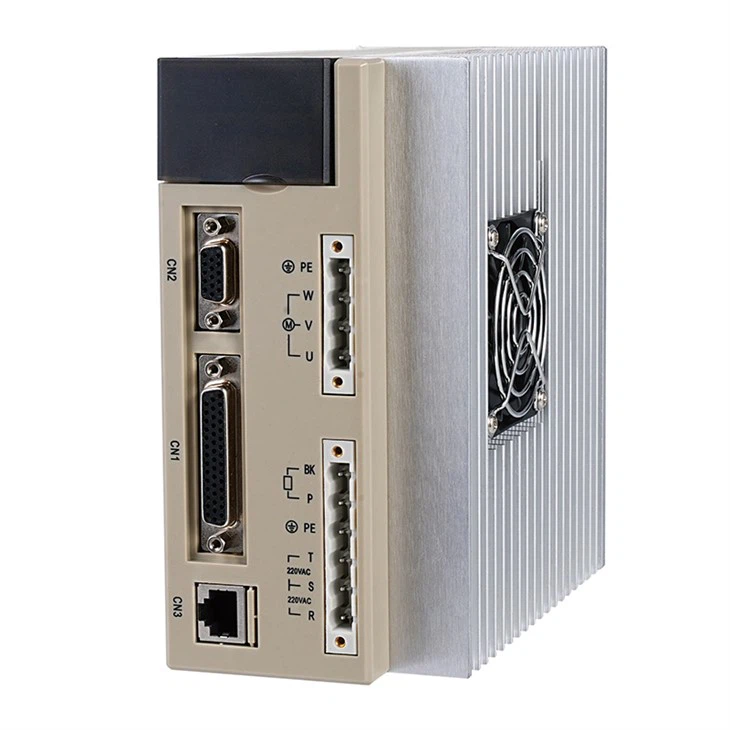
- CANopen Servo Drive: This is the device you want to connect to your PC. It should support the CANopen communication protocol.
- CAN Interface Adapter: You'll need a CAN interface adapter to establish a communication link between the CANopen Servo Drive and your PC. There are various types of CAN interface adapters available in the market, such as USB-to-CAN adapters and PCIe CAN cards. Make sure to choose an adapter that is compatible with your PC and the CANopen Servo Drive.
- CAN Cables: You'll need CAN cables to connect the CANopen Servo Drive to the CAN interface adapter. These cables should be shielded to minimize electromagnetic interference.
- PC: You'll need a PC with the necessary software installed to communicate with the CANopen Servo Drive. The software should support the CANopen protocol and provide a user-friendly interface for configuration and monitoring.
Step 2: Install the CAN Interface Adapter
Once you have gathered all the necessary equipment, the next step is to install the CAN interface adapter on your PC. Here's how you can do it:
- Physical Installation: If you're using a USB-to-CAN adapter, simply plug it into a USB port on your PC. If you're using a PCIe CAN card, you'll need to open your PC's case and insert the card into an available PCIe slot. Make sure to follow the manufacturer's instructions for proper installation.
- Driver Installation: After the physical installation, you'll need to install the drivers for the CAN interface adapter. These drivers are usually provided by the manufacturer and can be downloaded from their website. Follow the installation wizard to complete the driver installation process.
Step 3: Connect the CANopen Servo Drive to the CAN Interface Adapter
Now that you have installed the CAN interface adapter on your PC, the next step is to connect the CANopen Servo Drive to the adapter using the CAN cables. Here's how you can do it:
- Identify the CAN Ports: Locate the CAN ports on the CANopen Servo Drive and the CAN interface adapter. These ports are usually labeled as CAN_H and CAN_L.
- Connect the CAN Cables: Connect one end of the CAN cable to the CAN_H port on the CANopen Servo Drive and the other end to the CAN_H port on the CAN interface adapter. Repeat the same process for the CAN_L ports. Make sure to tighten the connectors to ensure a secure connection.
- Power On the Devices: Once the connections are made, power on the CANopen Servo Drive and the PC. The CAN interface adapter should be automatically detected by the PC, and the drivers should be loaded.
Step 4: Configure the CANopen Network
After connecting the CANopen Servo Drive to the CAN interface adapter, the next step is to configure the CANopen network. Here's how you can do it:
- Open the Configuration Software: Launch the software on your PC that is used to communicate with the CANopen Servo Drive. This software should provide a user-friendly interface for network configuration.
- Scan for Nodes: Use the software to scan the CANopen network for nodes. The software should detect the CANopen Servo Drive and display its node ID.
- Configure the Node ID: If the node ID of the CANopen Servo Drive is not set correctly, you can use the software to configure it. The node ID should be unique on the CANopen network.
- Configure the Bit Rate: The bit rate of the CANopen network should be set correctly to ensure reliable communication. The bit rate should match the bit rate of the CANopen Servo Drive and the CAN interface adapter. You can use the software to configure the bit rate.
Step 5: Establish Communication with the CANopen Servo Drive
Once you have configured the CANopen network, the next step is to establish communication with the CANopen Servo Drive. Here's how you can do it:
- Read and Write Object Dictionary Entries: The CANopen Servo Drive uses an object dictionary to store its configuration parameters and status information. You can use the software to read and write object dictionary entries to configure and monitor the servo drive.
- Send Control Commands: You can use the software to send control commands to the CANopen Servo Drive, such as speed commands and torque commands. The servo drive should respond to these commands and adjust its operation accordingly.
- Monitor the Status of the Servo Drive: The software should provide a real-time display of the status of the CANopen Servo Drive, such as its speed, torque, and position. You can use this information to monitor the performance of the servo drive and detect any faults or errors.
Tips and Considerations
Here are some tips and considerations to keep in mind when connecting a CANopen Servo Drive to a PC:

- Use High-Quality Cables: Make sure to use high-quality CAN cables that are shielded to minimize electromagnetic interference. Poor-quality cables can cause communication errors and affect the performance of the servo drive.
- Follow the Manufacturer's Instructions: Always follow the manufacturer's instructions for installation, configuration, and operation of the CANopen Servo Drive and the CAN interface adapter. This will ensure that you get the best performance and reliability from your equipment.
- Test the Connection: Before using the CANopen Servo Drive in a production environment, make sure to test the connection thoroughly to ensure that it is working correctly. You can use the software to perform diagnostic tests and check for any faults or errors.
- Keep the Software Up-to-Date: Make sure to keep the software on your PC up-to-date to ensure that it is compatible with the latest version of the CANopen Servo Drive and the CAN interface adapter. The software manufacturer may release updates to fix bugs and add new features.
Conclusion
Connecting a CANopen Servo Drive to a PC is a relatively straightforward process that requires some basic knowledge of the CANopen protocol and the equipment involved. By following the steps outlined in this blog post, you should be able to establish a reliable connection between the servo drive and your PC and start configuring, monitoring, and controlling the servo drive effectively.
If you're interested in purchasing a CANopen Servo Drive or need further assistance with the connection process, please feel free to contact us. We're a leading supplier of AC Servo Motor Controller, Servo Drive Amplifier, and General Servo Drive, and we're committed to providing our customers with high-quality products and excellent customer service.
References
- CiA (CAN in Automation) website
- CANopen Servo Drive manufacturer's documentation
- CAN interface adapter manufacturer's documentation